Receipts
How receipt scanning works in Reign
Snap or upload a receipt, check the details Reign reads, and use them to understand your spending.
By Reign ·
Reign reads a receipt’s merchant, date, total, currency, and line items. It suggests a category for the purchase and tags for its items. You can check and edit the result against the original receipt.
Here is how to get from a paper receipt to a recorded purchase.
Follow one receipt into Reign
This example uses the same DIY Depot receipt shown on our homepage. It is demonstration data, with a real Reign screen showing the result.
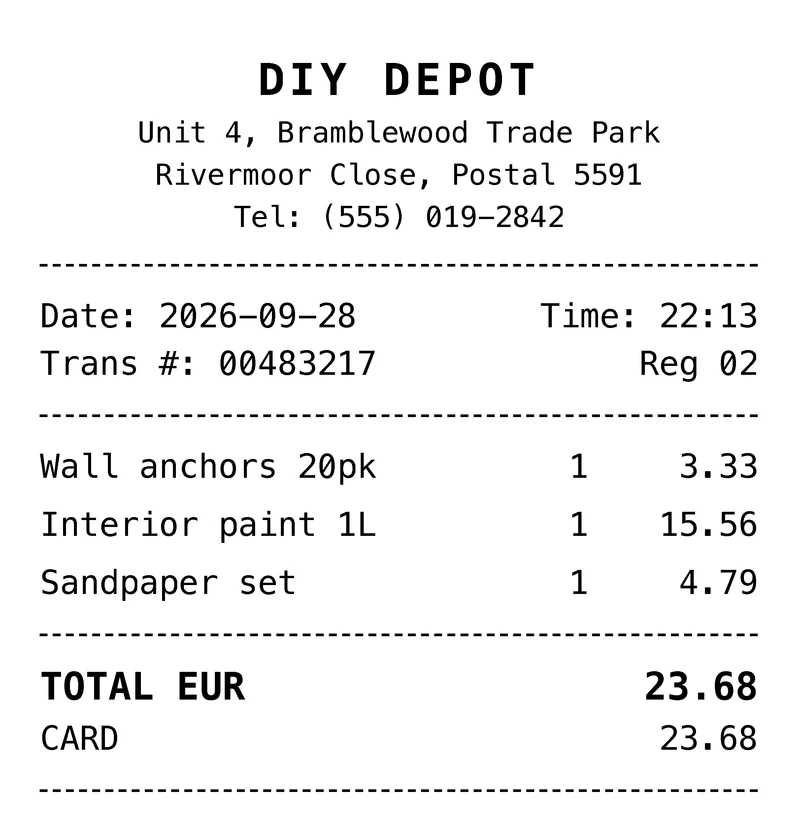
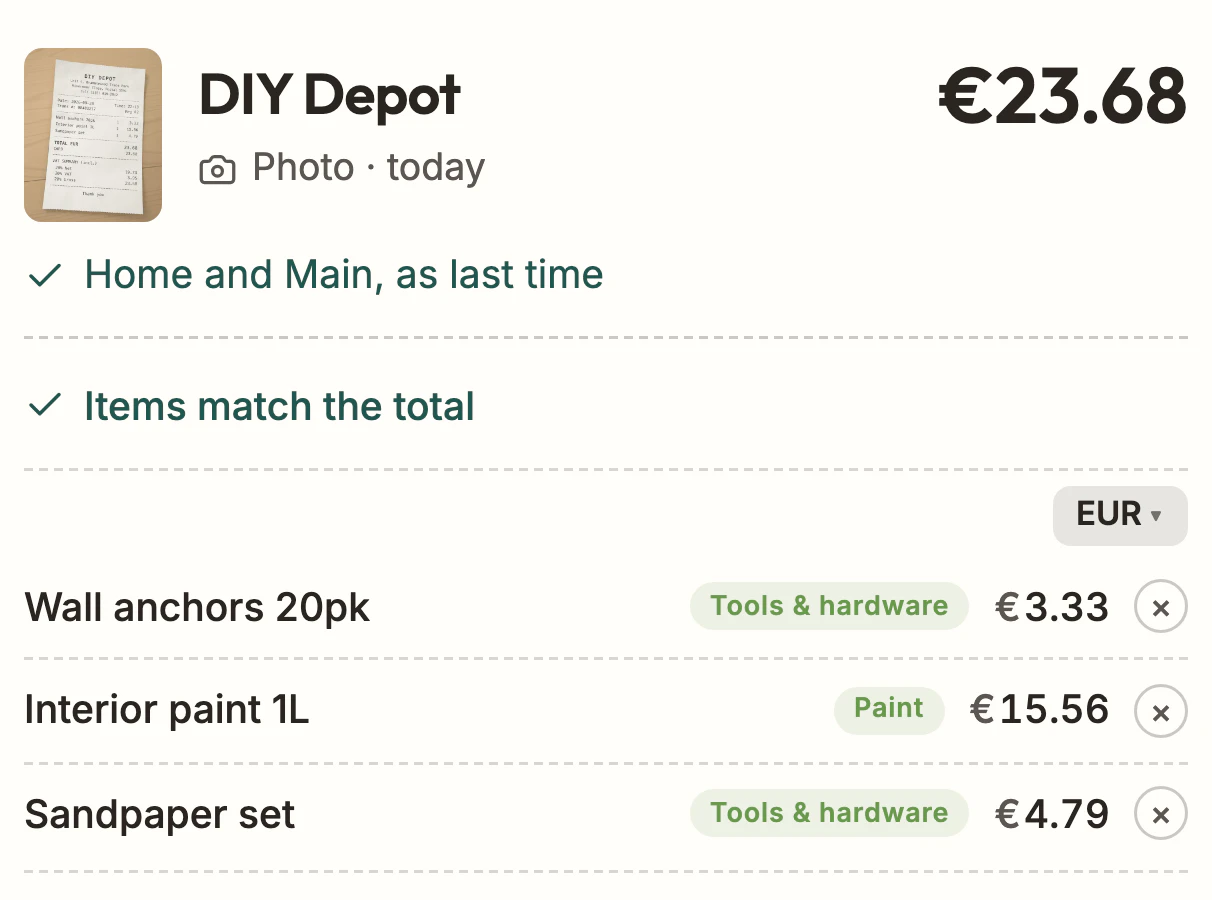
The amounts add up: €3.33 + €15.56 + €4.79 = €23.68. The purchase is filed under Home; Tools & hardware and Paint describe its individual items. Item tags do not split the purchase into separate category transactions.
If the paint amount were read as €15.58, checking against the original would reveal a €0.02 difference. Correct the amount to €15.56. This is an illustrative correction, not an error measured in this demo. A matching total is a useful check, but it does not prove that every name, date or tag is right.
Capture the whole receipt
Open receipt capture and snap a photo, or upload an image you already have. Keep the text in focus and include the full receipt, especially the date and total.
If a receipt is faded or folded, flatten it and use good lighting. A clearer image gives Reign more to work with.
Check what Reign read
Your first receipt saves automatically after its details appear when Reign can choose a wallet in the receipt’s currency. If no wallet matches, you choose where to save it. You can open the saved transaction to check and edit its details.
For later receipts, open a receipt in To review to compare the image with what Reign read. Check:
- The merchant, date, currency, and total.
- The line items and their amounts.
- The purchase category and suggested item tags.
- The space and wallet where you want to record the purchase.
Correct any mistakes and save the transaction. You can edit a recorded transaction later too. If you turn off keeping receipt photos, Reign deletes the photo after the purchase is saved; the recorded details remain.
Receipt reading can make mistakes, especially with faint text, abbreviations, or unusual layouts. If a receipt cannot be read, you can add it with Quick log.
Explore the spending behind the total
Saved transactions appear in your history and contribute to Insights. Open a category or store to find its purchases, then open a transaction to see the receipt and item details.
This is useful for a basket that mixes groceries, toiletries, and household supplies. The receipt contains detail that a store name and total alone cannot show.
For a worked price comparison, see how to track grocery prices from receipts.
Receive receipts by email
Plus adds an email address for each space. Forward a receipt to that address and it arrives in To review. You can also set up forwarding rules for specific senders.
Email receipts use the same scans as snapped ones. Each document Reign reads from an email uses one scan, whether that’s an attachment or the message itself.
Try the free scans
Free includes 30 receipt scans, a one-time allowance. Plus includes 400 a month, shared across snapped receipts, email receipts and category suggestions in Import. See the plan comparison for the details.
Quick log remains available on Free when you do not have a receipt or have used your scans.
Snap your first receipt and check the result against the paper.
Related reading: tracking without a bank connection and comparing ways to track spending.